
1. Introductory
From October 1, 2026, suppliers are required to make an appointment to collect returns. By following the instructions below and scheduling an appointment, you ensure a process that is as efficient as possible, allowing us to assist you quickly.
In case of questions, please contact: Rob Wenneker
2. Scheduling an appointment for collecting supplier returns
Below is a step-by-step explanation of the questions and options displayed in our appointment portal for collecting supplier returns.
2.1. Introduction
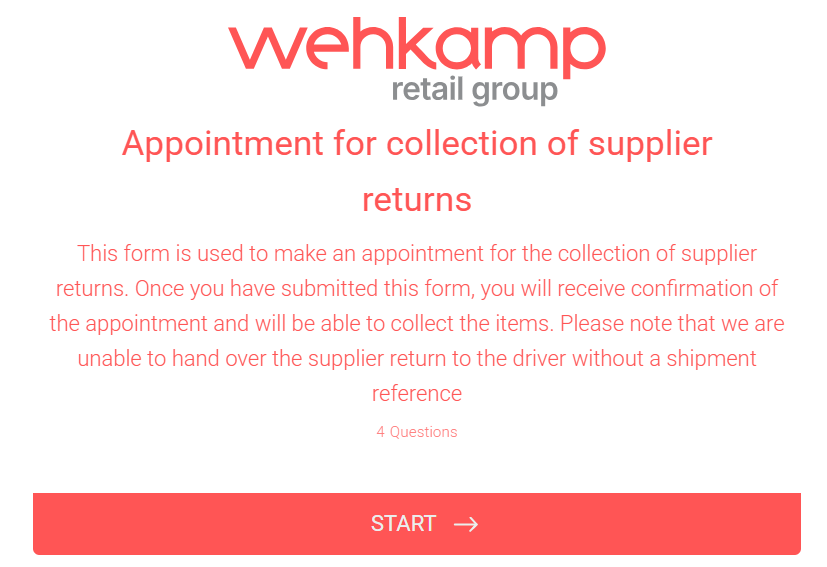
When you open the appointment portal, several terms and conditions will be presented. Please read these carefully and click “Start” to proceed.
2.2. Supplier name
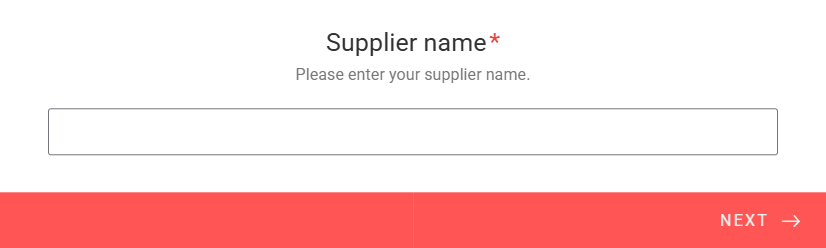
After starting, you will be asked to enter the supplier name. Enter the name and click “Next”.
2.3. Contact details
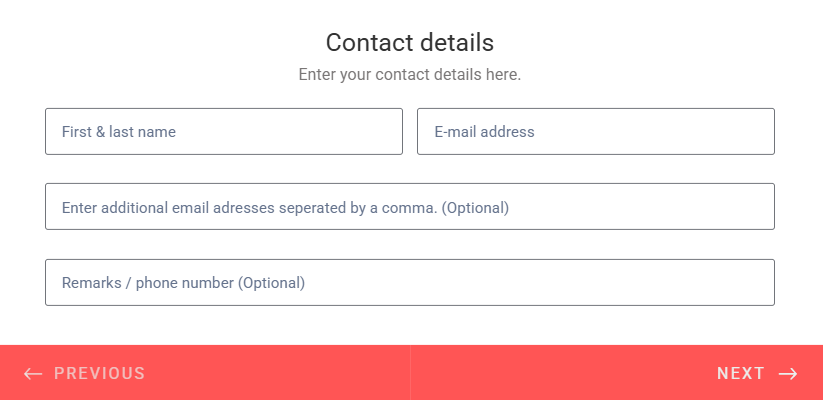
After entering your supplier name, you will be asked to provide further contact details. Here, enter at least your name & email address. Additionally, you can add extra email addresses and leave any notes (such as a phone number and/or the name of the carrier). After filling this in, click “Next”.
2.4. Type of supplier returns
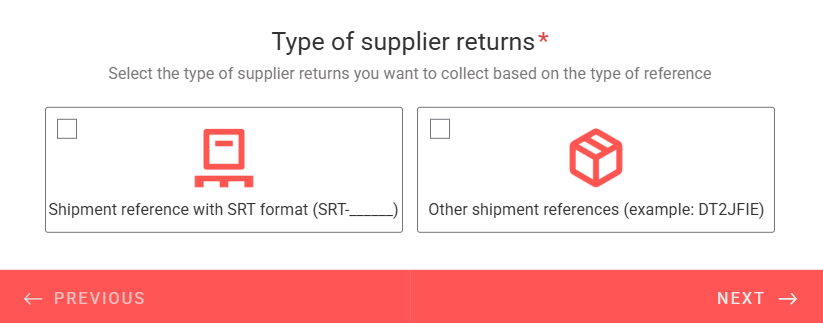
Next, you will be asked for the type of supplier return. The confirmation email stating that a supplier return is ready for collection contains a reference number. Does this reference look like SRT- followed by six digits? Check the option Shipment reference with SRT format (SRT-______). Does the reference have a different format? Check the option Other shipment references (example: DT2JFIE). If you want to collect multiple supplier returns of different types at the same time, check both options. Then click “Next”.
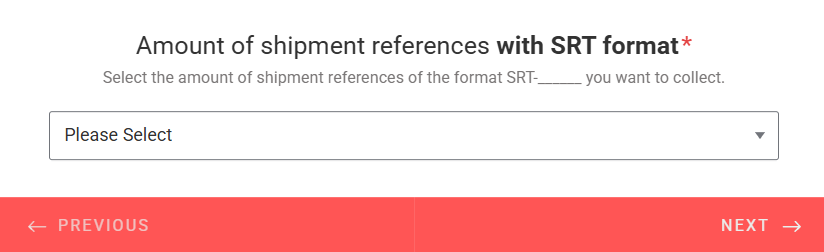
2.5. Amount of shipment references with SRT format
If you checked the Shipment reference with SRT format (SRT-______) option in step 2.4, select how many return shipments with the SRT format you want to register for collection. You can register a maximum of five SRT return shipments at once. If you wish to register more, you can submit the form again for the remaining references. After selecting, click “Next”.
2.6. Shipment reference with SRT format
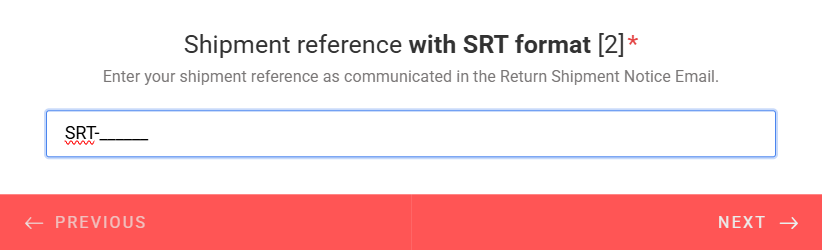
After selecting the number of SRT references, you will be asked to fill in these reference numbers. You can enter one reference per field. After entering a reference, click “Next” to proceed.
2.7. Shipment reference with other format
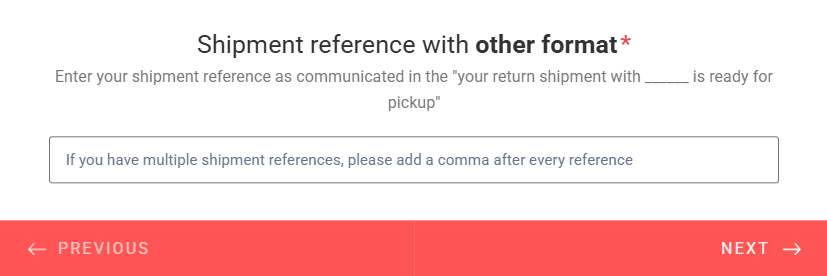
If you checked the Other shipment references (example: DT2JFIE) option in step 2.4, you will now be asked to fill in these references. In this field, you may add multiple references, separated by a comma and space (DT2JFIE, DT2JFIK, DT2JFIO). After entering the reference(s), click “Next” to proceed.
2.8. Total volume to collect
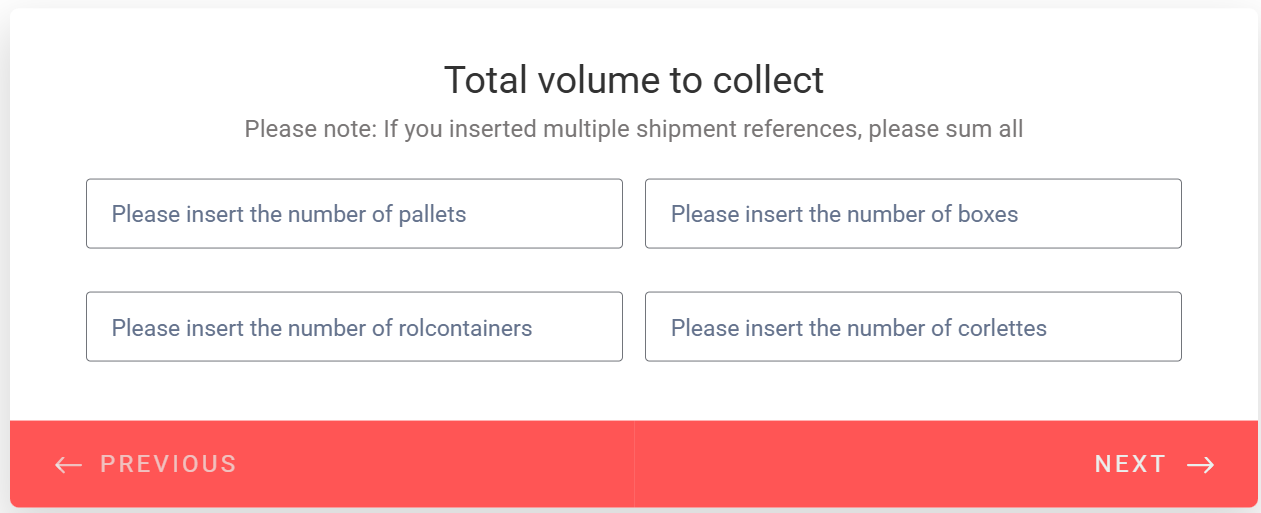
After entering the shipment reference(s), you will be asked to enter the volume you are collecting. Here you can enter the number of pallets, boxes, roll containers and corlettes. Entering the number of pallets is most important. If you are registering/collecting multiple shipment references at the same time, you may combine and sum the total volumes. If you only want to collect a partial volume of the shipment reference, specify the amount here. After entering the information, click “Next” to proceed.
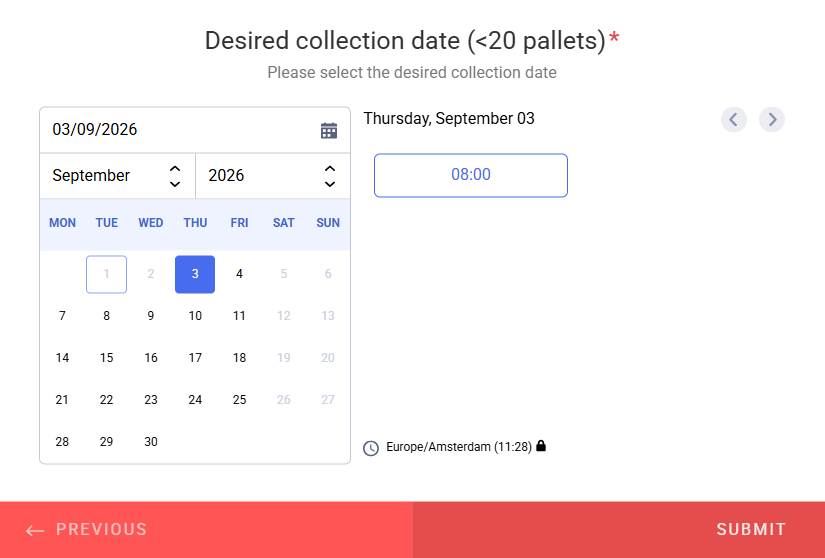
2.9. Desired collection date
Finally, you will be asked to select a collection date from the calendar. If a time slot cannot be clicked, it is unfortunately no longer available. Collection appointments are always for a full day (08:00–16:00) or (09:00–15:00), depending on the volume you are collecting. This will also be confirmed in the email you receive later. After selecting a date, click “Submit” to finalize the collection appointment.
2.10. Confirmation: WRG | Your appointment for collection of [shipment reference] is received
After submitting the form, you will receive a confirmation email containing further information, your submitted details, and the collection appointment.
If you have any questions regarding the collection, you can reply directly to this confirmation email. For collection, it is crucial that the driver provides the correct shipment references upon arrival. Without a valid reference, we cannot release the supplier return.
3. Frequently Asked Questions (FAQ)
Can I reschedule my appointment?
Yes, you can! Reply to the confirmation email stating that you would like to reschedule. We will update the appointment, and you will receive a new confirmation email.
I entered an incorrect shipment reference, what should I do?
If you entered an incorrect shipment reference, simply reply to the confirmation email with the correct reference. We will update the appointment in our system and send you a new confirmation.
Why is it mandatory to schedule an appointment?
By scheduling an appointment in advance, we can ensure that your returns are staged and ready at the dock. This allows the driver to be assisted as quickly as possible and guarantees that the correct products are handed over.
How far in advance do I need to schedule an appointment?
This depends on the total volume to be collected. Appointments must be submitted at least 24 hours prior to the start of the collection time slot. For returns larger than 20 pallets, a notice of 72 hours is required. Available slots are shown in real-time under Desired collection date (step 2.9).